How to Import Google Fonts into EasyKara
Want a typeface that is not included in EasyKara's built-in list? You can import one or more families directly from Google Fonts and use them immediately in your karaoke lyrics. Follow these steps to copy the correct Web embed code and add it to EasyKara.
Step 1: Open Google Fonts
Visit the Google Fonts website to browse its font library. Use search, language, category, or style filters to narrow the list.
Open Google Fonts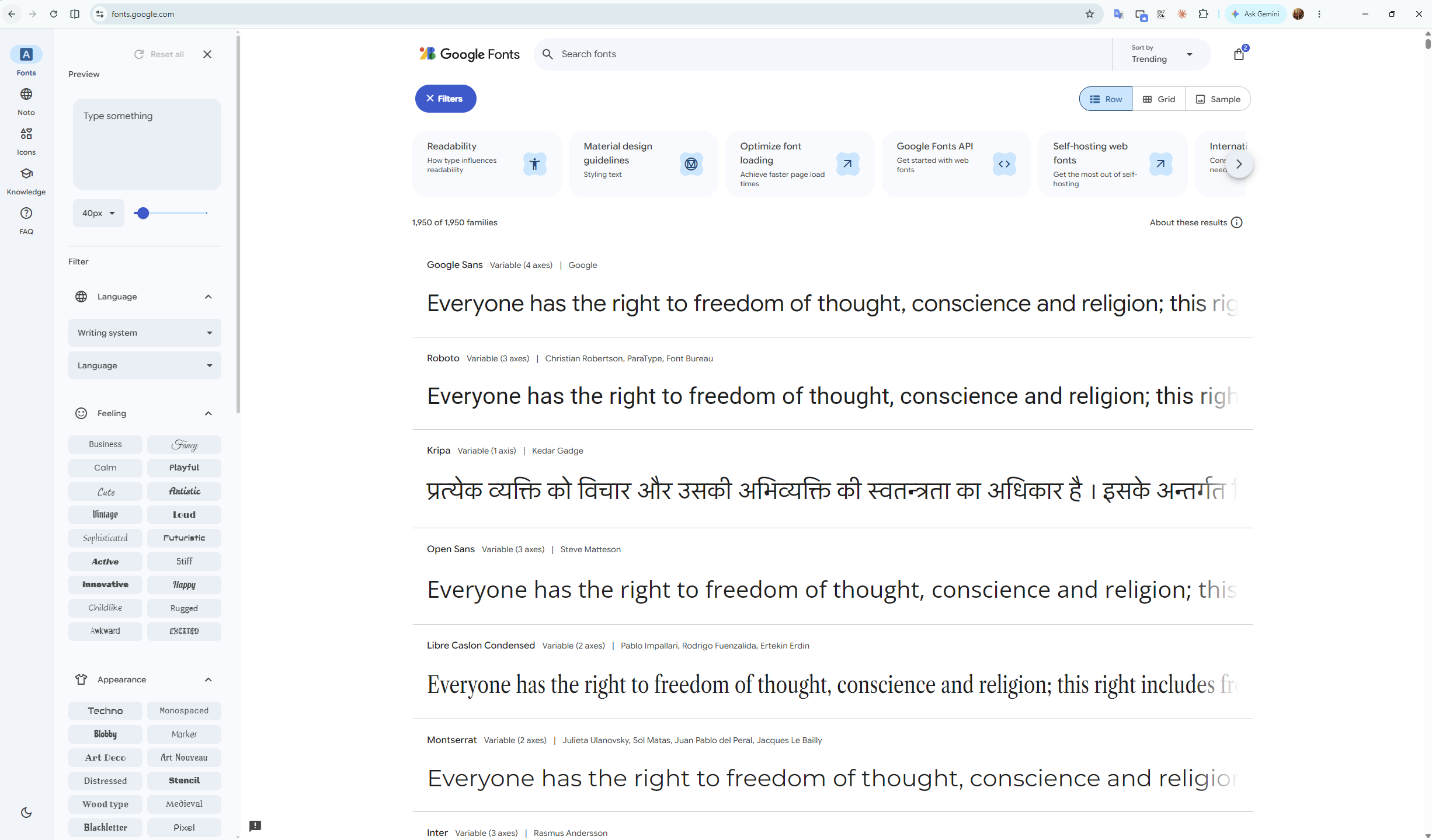
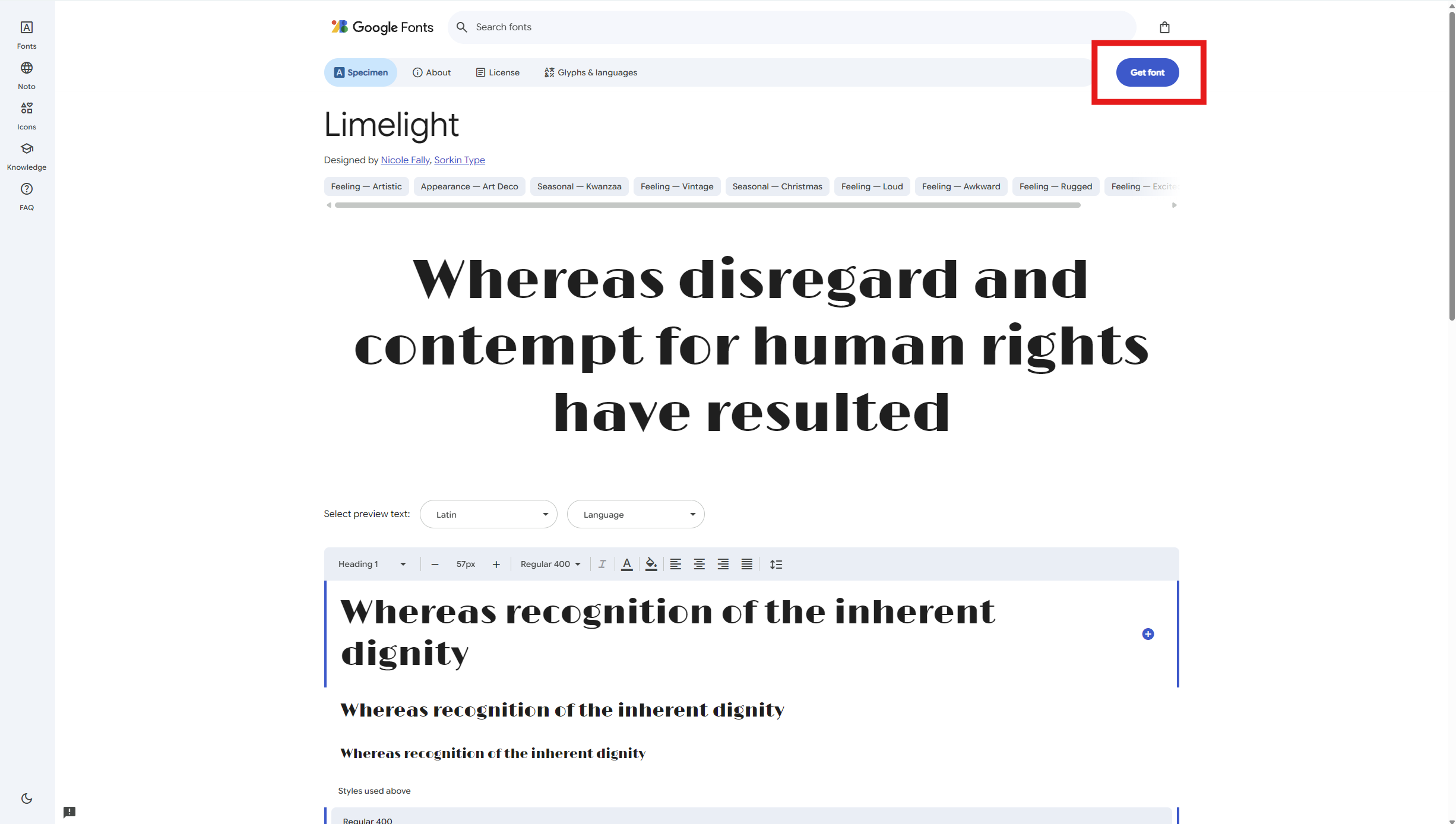
Step 2: Choose a font and select Get font
Open the font you like, preview its styles, and select the Get font button in the upper-right corner. You can repeat this for multiple font families before continuing.
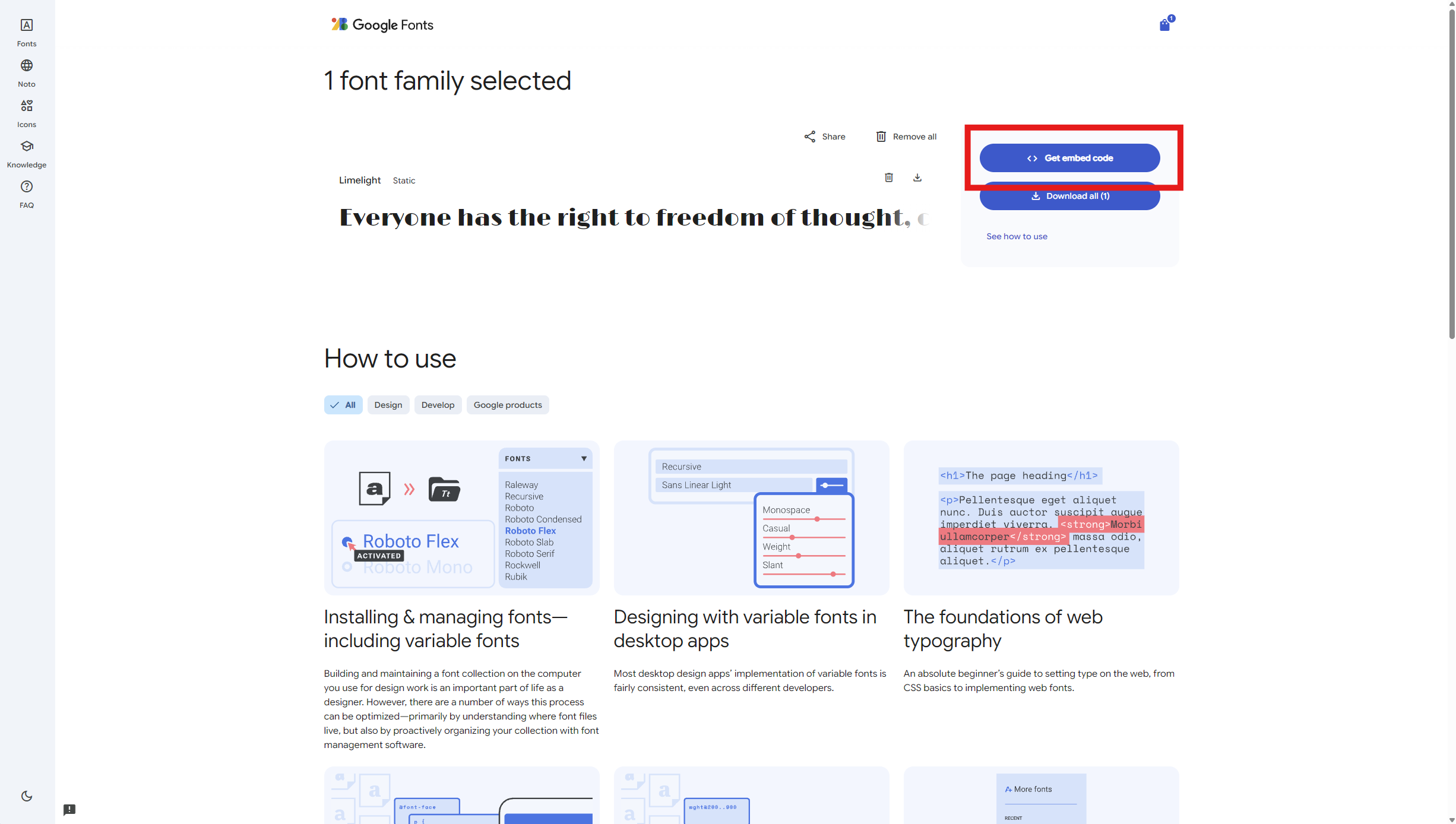
Step 3: Choose Get embed code
Select Get embed code to use the font directly in EasyKara. If you prefer to keep the font files on your computer, choose Download all instead and import the downloaded font file from EasyKara.
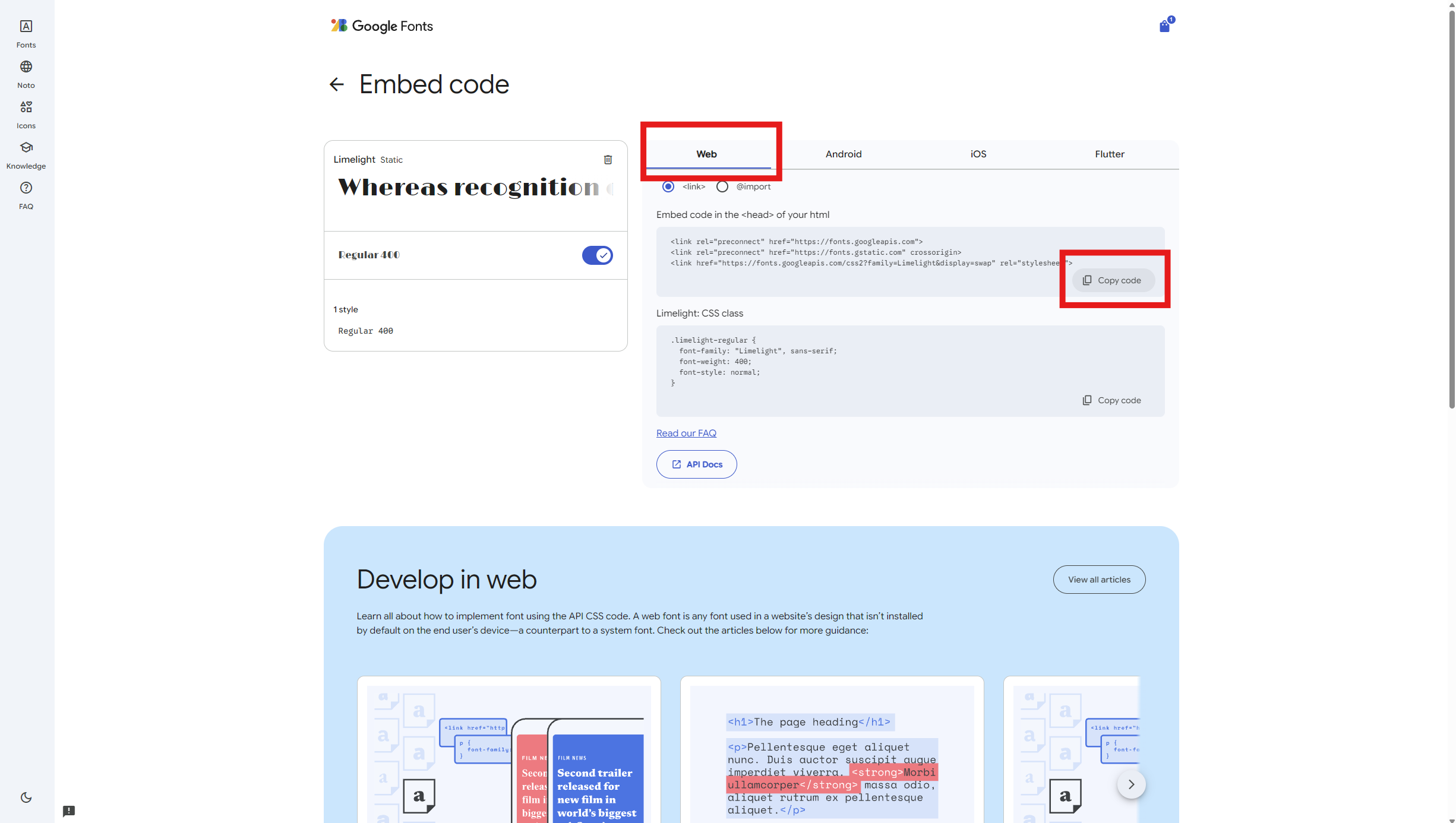
Step 4: Copy the Web embed code
Make sure the Web tab is active, then select Copy code in the first embed-code panel. Copy the complete link block; EasyKara will find the Google Fonts stylesheet URL automatically.
Step 5: Open Add font in EasyKara
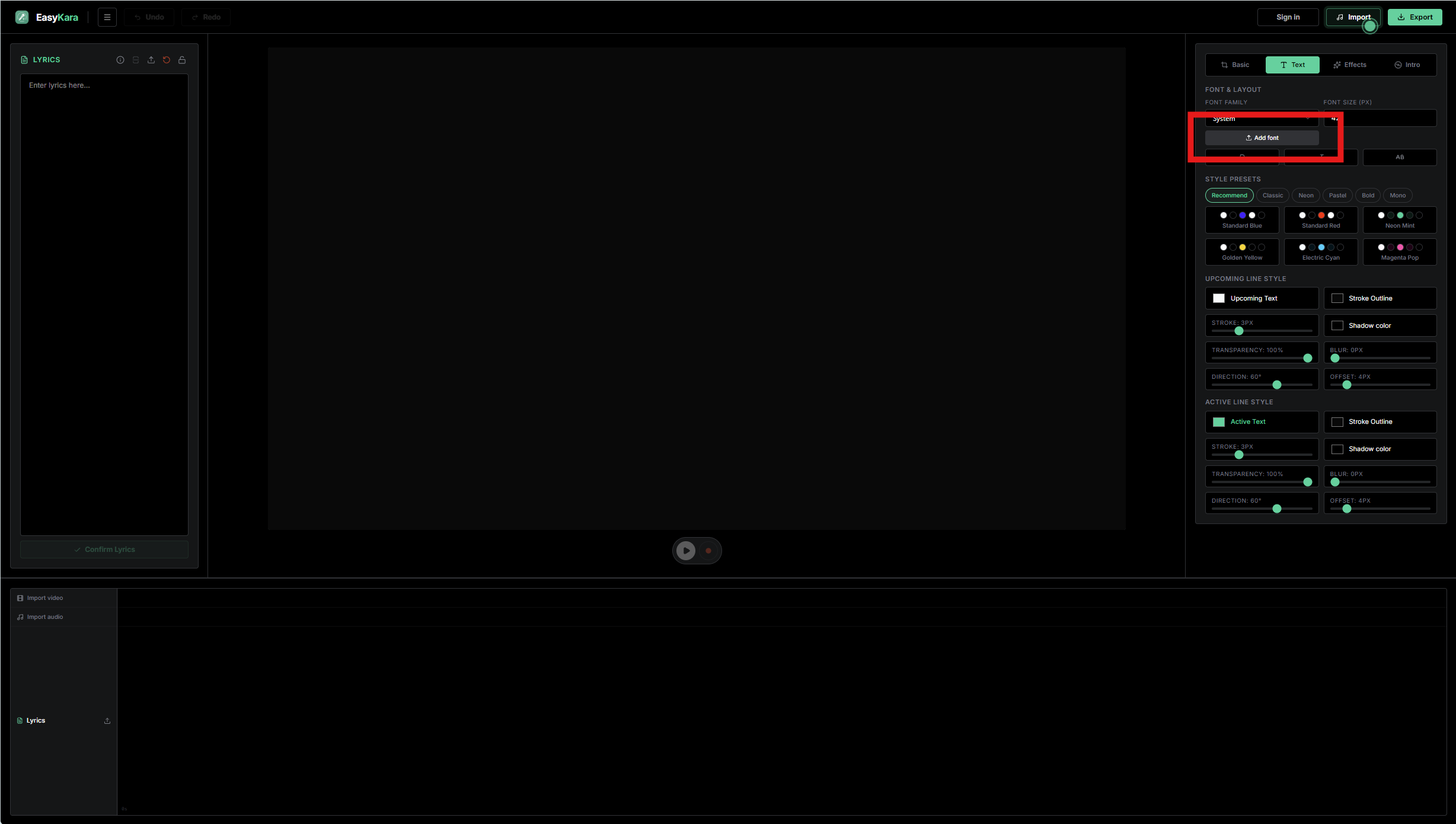
Return to EasyKara, open the Text tab, and select Add font below the Font Family control.
Step 6: Import the Google Fonts code
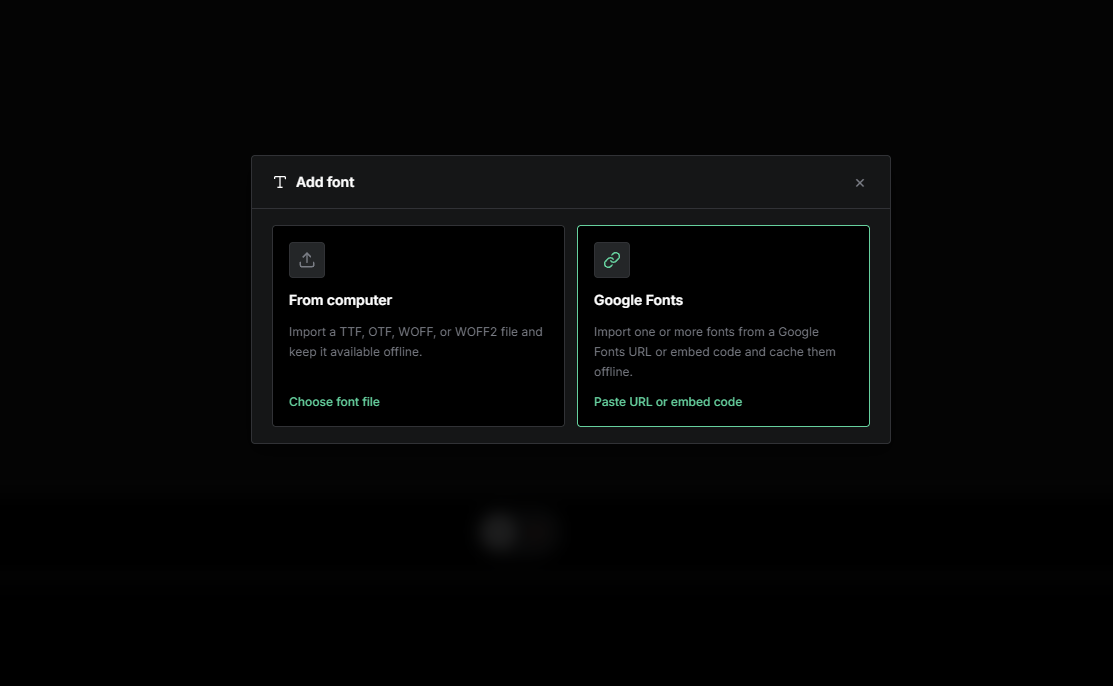
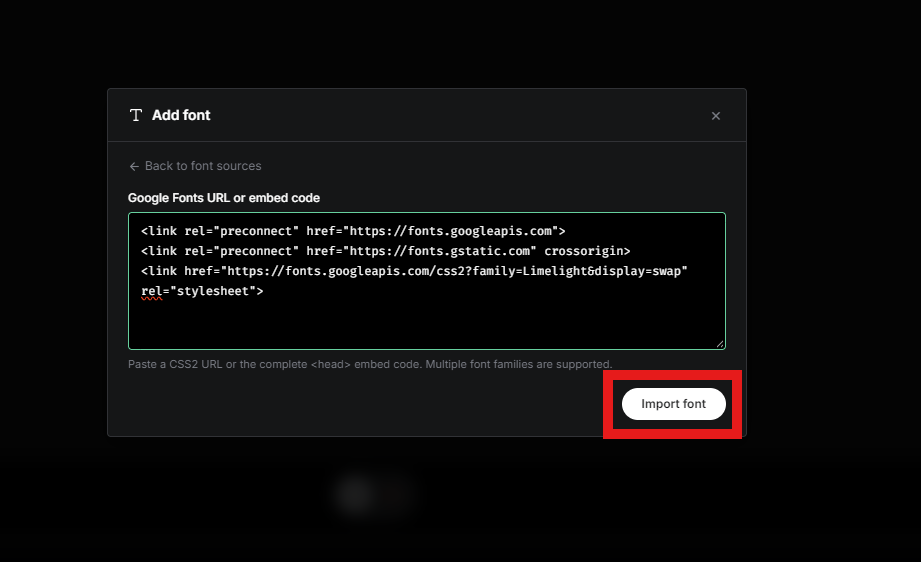
Choose Google Fonts, paste the code you copied into the input, and select Import font. A single embed block may contain multiple font families; EasyKara imports each family separately.
Step 7: Select and use the imported font
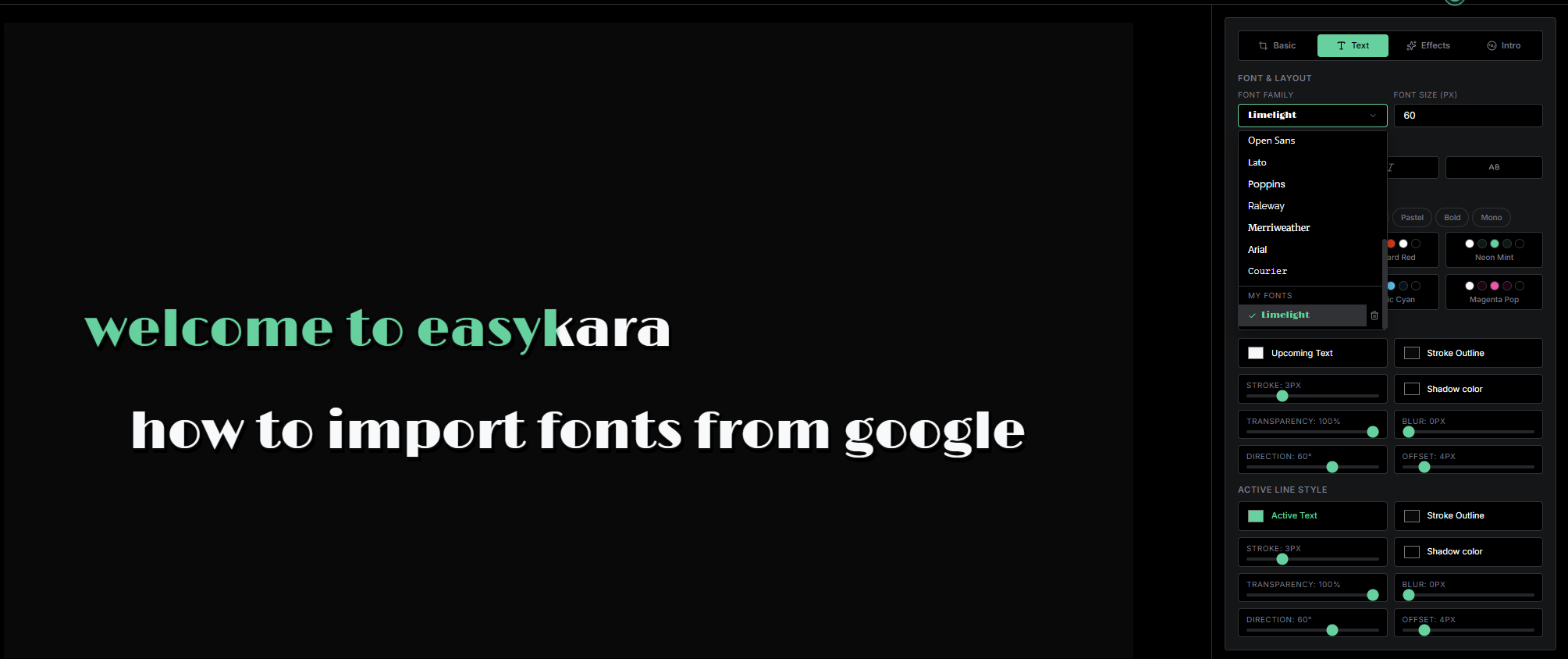
The imported family now appears under My Fonts in the Font Family dropdown. Select it to apply the font to your lyrics and preview the result immediately.
Ready to style your karaoke lyrics?
Open EasyKara and import your favorite Google Fonts in a few clicks.
Open the EditorFrequently asked questions
Can I import multiple Google Fonts at once?
Yes. Add several families in Google Fonts, copy the combined Web embed code, and paste it into EasyKara. Each family is imported as a separate selectable font.
Does Google Font import work on both web and desktop?
Yes. The same Google Fonts URL or Web embed code works in the EasyKara web editor and desktop app.
Does EasyKara upload my imported font to a server?
No. Imported font files are stored locally in your browser or desktop application data.