How to Make Duet Lyrics with Actors in EasyKara
Duet songs switch between singers, and each singer often needs its own look. EasyKara's actors let you assign a singer to lyric lines, such as Male, Female or Duet, and give each one its own colors. This guide shows how to assign actors, show the singer icon, and customize every actor's style.
Step 1: Find the actor column in the lyrics list
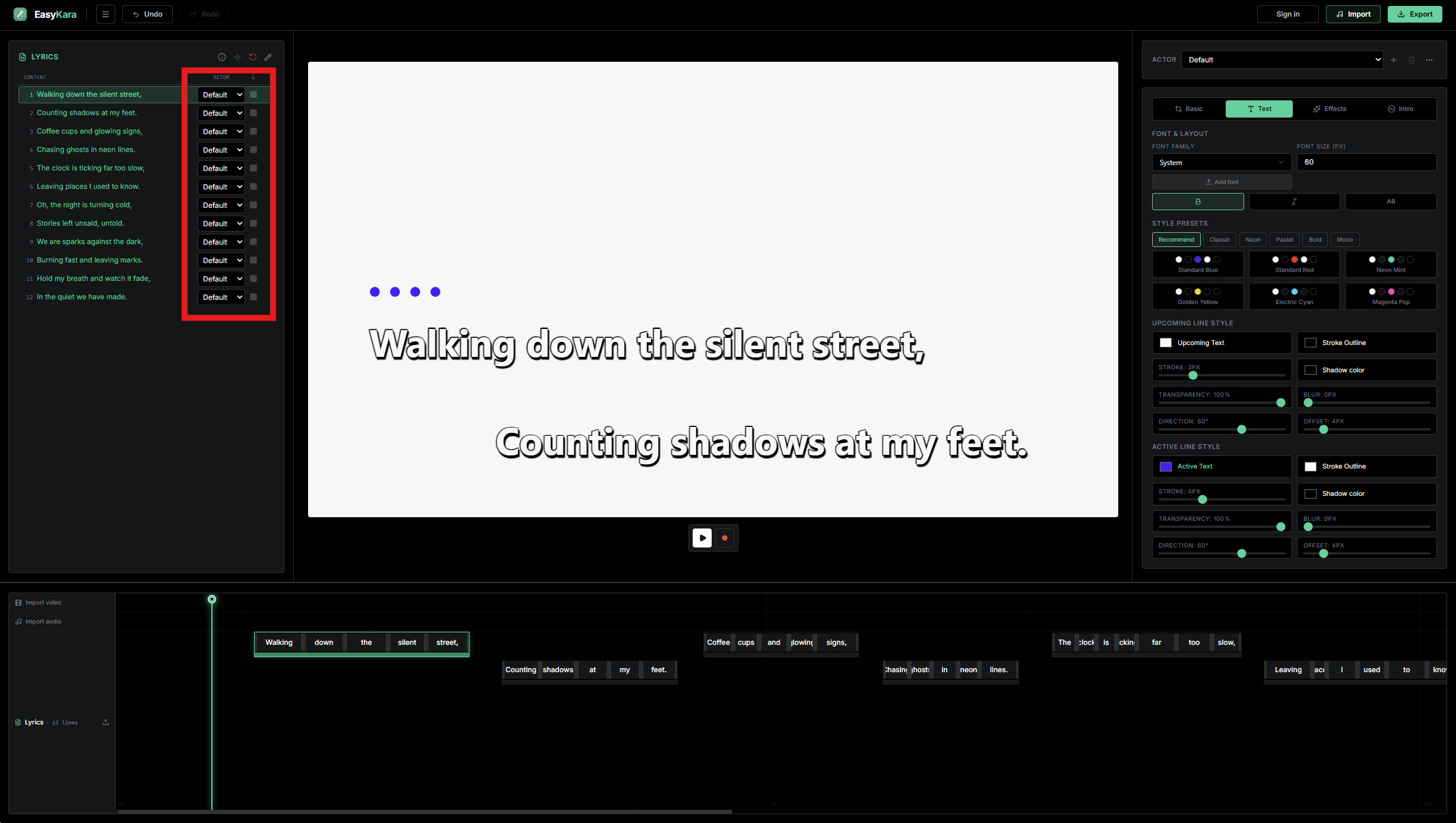
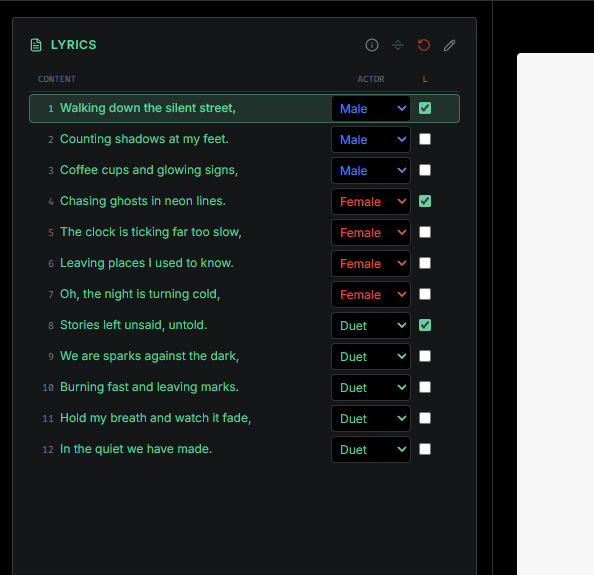
Next to each lyric line on the left is an Actor dropdown. EasyKara starts with three ready-to-use actors: Male, Female and Duet. A line set to Default uses the normal style you set for the whole song.
Step 2: Choose an actor on the line you want
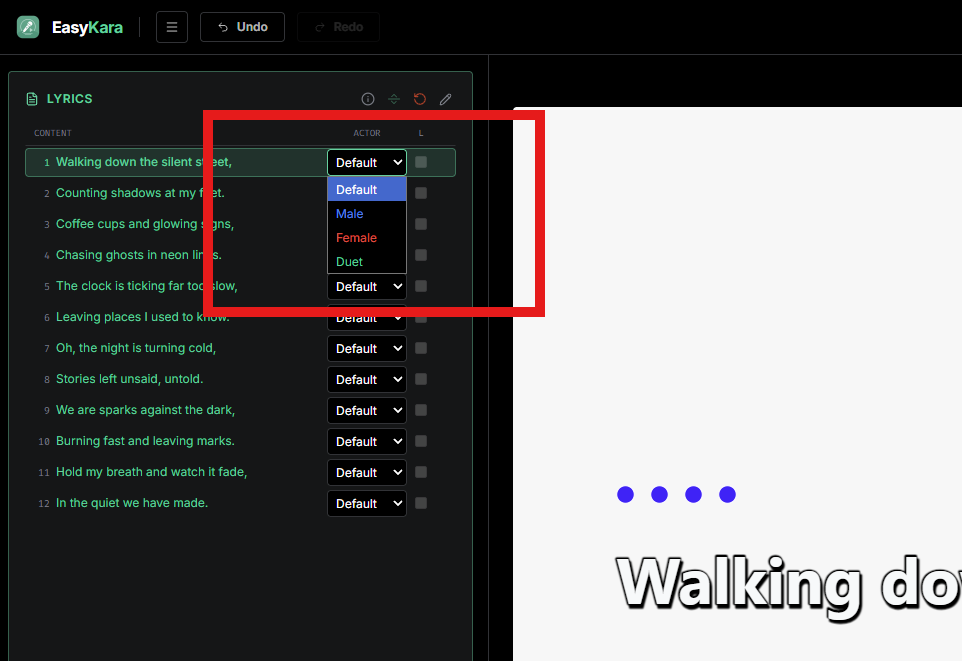
Open the dropdown on the line where a new singer starts and pick an actor. Every line below it is set to that actor too, so you only need to change the dropdown where the singer changes.
Step 3: See the actor color and icon
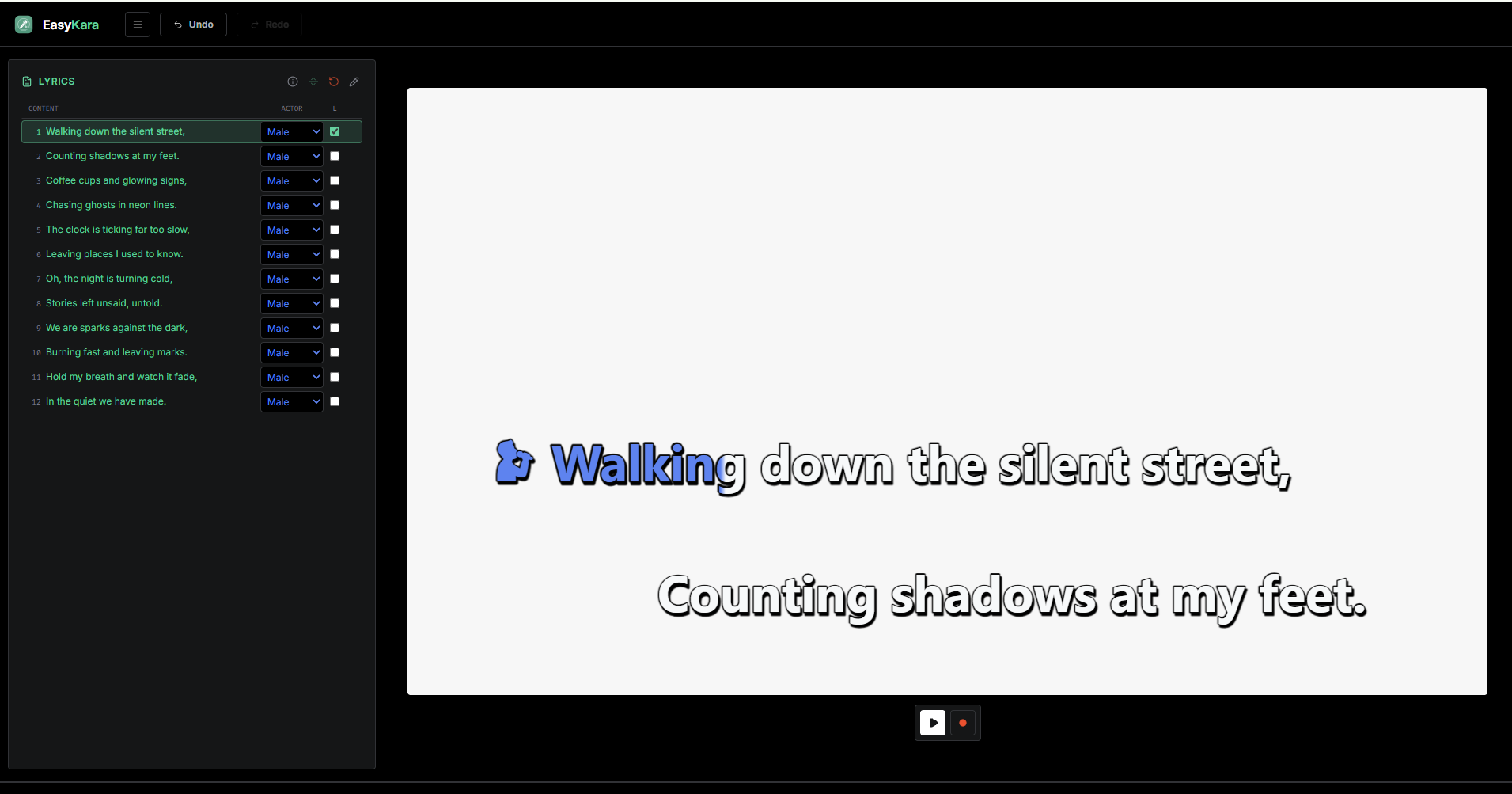
In this example we picked Male. The active text turns blue, and the first line shows the male singer icon in front of the lyric.
Step 4: Hide the icon if you do not want it
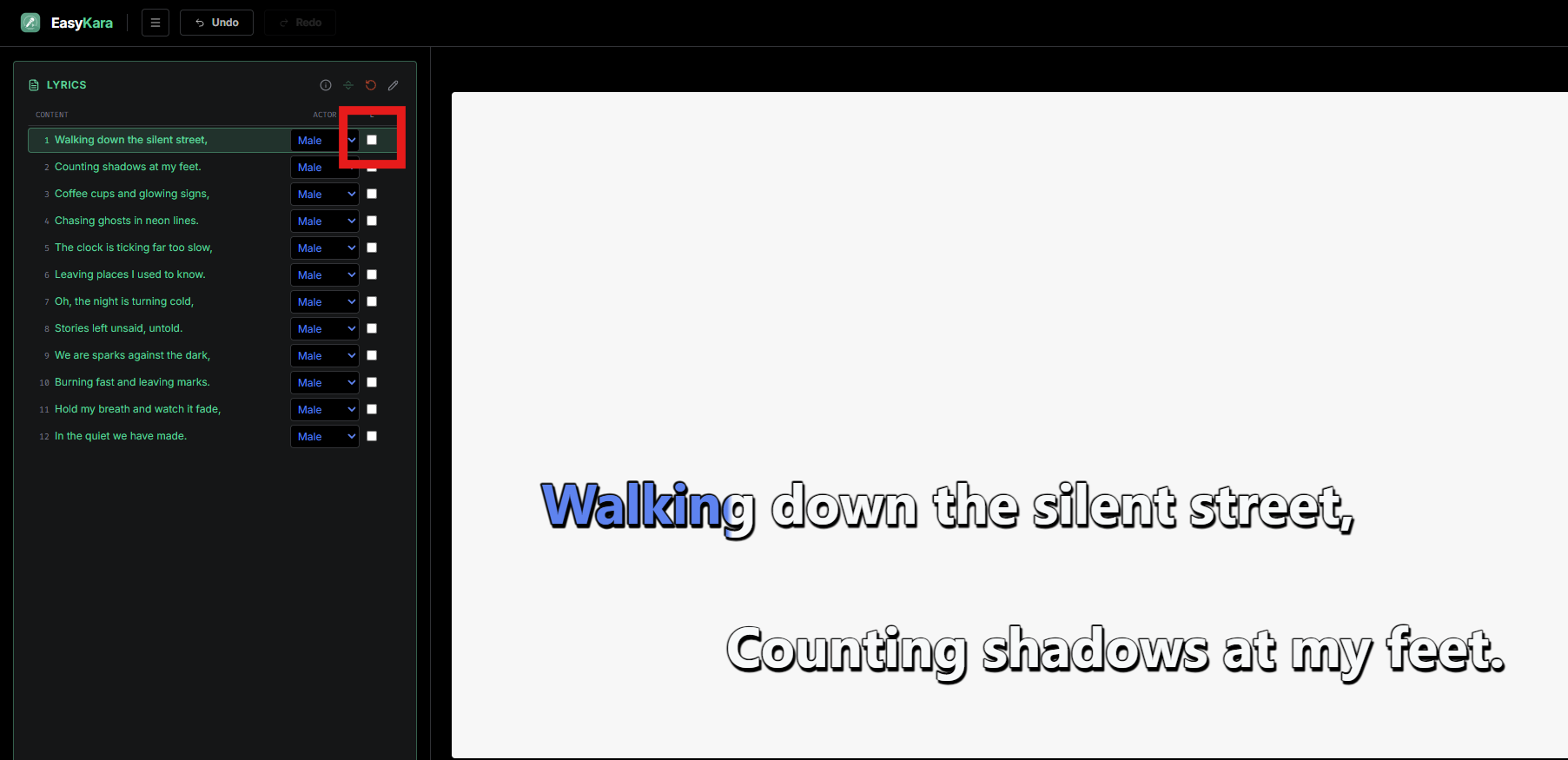
The checkbox in the column labeled L decides whether a line shows the actor icon. Untick it to hide the icon on that line; the color stays the same. If an actor has an icon, EasyKara ticks this box automatically on the first line of each new singer.
Step 5: Assign Male, Female and Duet in one song
Here is a short demo. Line 1 is Male, so lines 1 to 3 are Male. Line 4 switches to Female, so lines 4 to 7 are Female. Line 8 switches to Duet, so lines 8 to 12 are Duet. The icon appears on the first line of each part.
Step 6: See the result
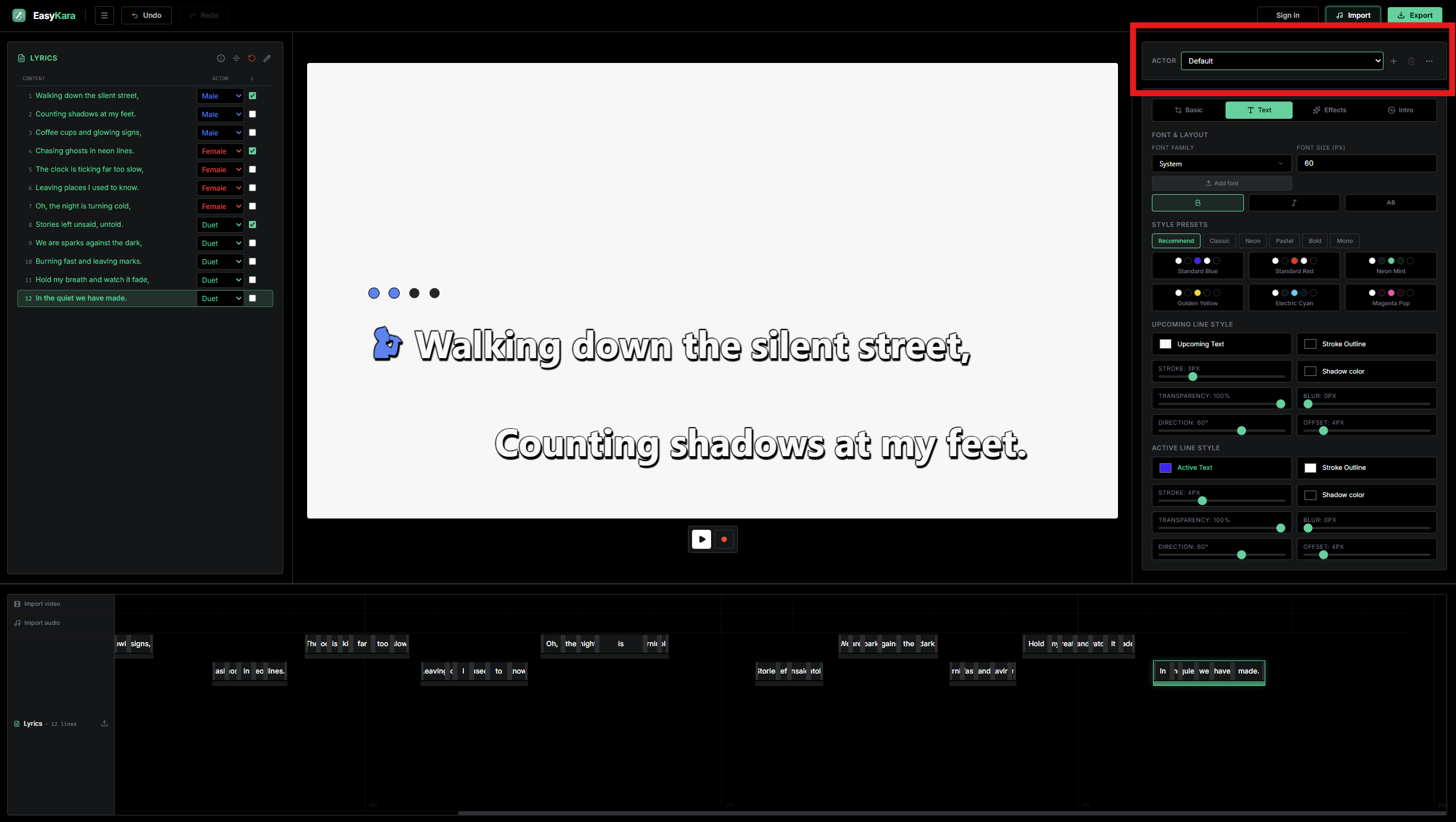
This is the result in the preview. Each part uses its actor's colors, and the singer icon appears before the first line of each singer.
Step 7: Customize each actor's style
The Actor bar sits above the style panel, and it chooses which actor you are editing. In the Text tab, the color presets and the upcoming and active fill, outline and shadow controls change only that actor. Font, size, layout and background are shared by the whole song.
Step 8: Set a style for each actor
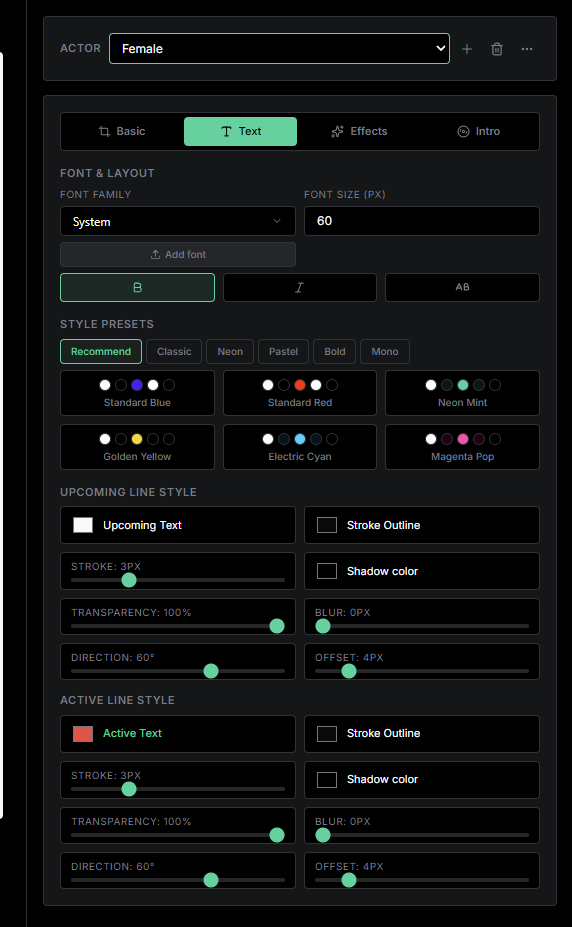
Pick Female in the Actor bar, then choose its colors. In this example, Female has a red active text color. Do the same for Male and Duet, and each singer keeps its own look.
Step 9: Add, edit or remove actors from the menu
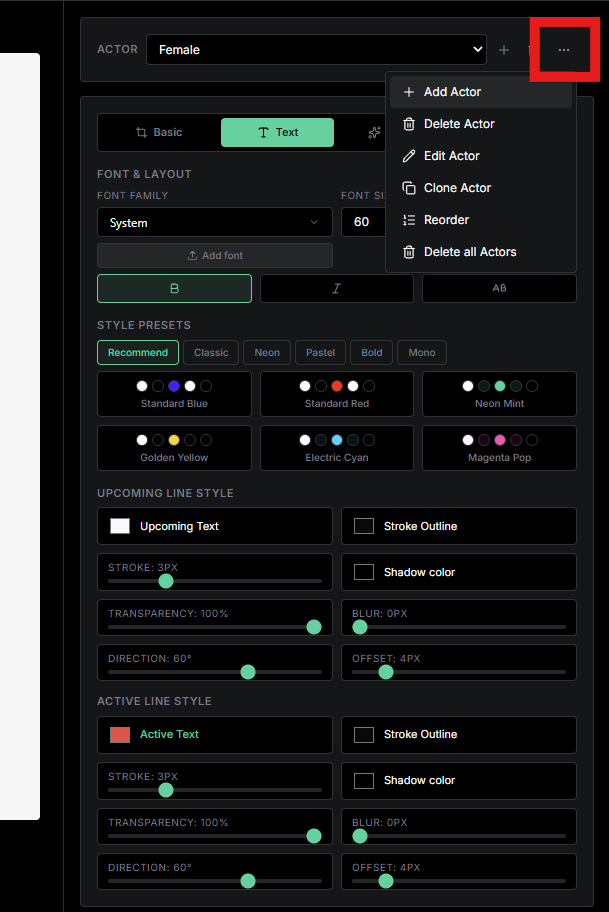
Click the three-dot button beside the Actor bar to open the menu. You can add an actor, rename it and change its icon or text mark, clone an actor, reorder the list, or delete actors. Delete all keeps only Default.
Duet lyrics made simple
Assign actors line by line, turn on the icon where each singer starts, and style every singer. Actor colors appear in the preview and in the exported video.
Ready to make your duet?
Open EasyKara, add your singers, and give each one its own look.
Open the EditorFrequently asked questions
Does assigning an actor change my lyric timing?
No. Assigning an actor only changes the color and the optional icon. Timing, syllables, translations and verse breaks stay the same.
Do actor colors appear in exported subtitles?
Colors appear in the exported video. ASS subtitles keep the actor styles. LRC and SRT files do not include actor colors or icons.
Can I add my own singer?
Yes. Open the actor menu, choose Add Actor, give it a name, then set its colors in the Text tab. A new actor starts from the Default colors.